Select the range of bar sizes for foundation design such as the maximum and minimum rebar sizes for pier and footing rebars, longitudinal and tie bar sizes for strap beam here. Strap beam bar size range is used only in Foundation3D and Mat3D. If in App Settings, the values entered here will become the defaults for all subsequent new projects.
You can select different maximum and minimum rebar sizes for pier longitudinal bars, pier tie bars and the footing rebars. Enter the maximum and minimum rebar sizes for pier longitudinal rebar design, pier tie bar design and footing rebar design. Our program uses these values to provide you with a truly flexible solution for pier and footing design. In general, pier longitudinal rebar design considers the largest three bar sizes that will satisfy the code requirements. The footing design displays the smallest rebar sizes that will satisfy code requirements.
Starting with version 2025R3, pier longitudinal and pier tie bar minimum sizes can be set from the full range of available bar sizes in the table.
Prior to version 2025R3, the pier minimum bar sizes were automatically program set as described below:
To set the minimum rebar sizes for pier longitudinal bars and pier tie bars, change the maximum rebar sizes of pier longitudinal and pier tie bar sizes respectively. Changing the maximum bar sizes will automatically set the the minimum bar sizes 2 bar sizes down from the maximum bar size. Note that on the Pier Geometry input page, it is possible to set different max bar sizes for different piers.
Buttons and Actions
Mouse over each button to see its functionality.
Add - To add a rebar in the table, click the + button. Enter the bar size, diameter, and weight in the pop-up window. Click "ok" to add the rebar in the existing table. The rebar is inserted in the ascending order of the bar size.
Delete - To remove a rebar from the existing table, select the rebar and click the x button.
Restore Defaults - To restore defaults, click the button with four straight arrows. The rebar table will be restored to the table in App Settings.
Copy from Parent - To copy from parent, click the button with three curved arrows.
Save as Template - To save the current rebar table as a template, click the left ribbon button.
Load Template - To load a previously saved rebar table template, click the right ribbon button.
You can save rebar information specific to a project so that you can use it later for foundation design on the same or a similar project by using templates. You can save and load a template in the Rebar Table page in App Settings or Workspace Settings. When you Load or Save a Template, the default directory is:
C:\ProgramData\Dimensional Solutions\Data\Settings\Templates
The file will have the extension of “.drt”.
Save a Rebar Template: To save the current rebar table as a template, click the left ribbon button. A “Save As” dialog is displayed so that you can enter the filename of the template in which the rebar information will be saved.
Load a Rebar Template: To load a previously saved rebar table template, click the right ribbon button. A “Open” dialog is displayed. Choose the template file that you want loaded and click the OK button.
Default Tables:
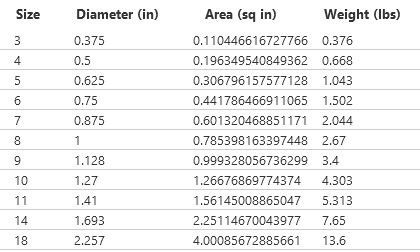
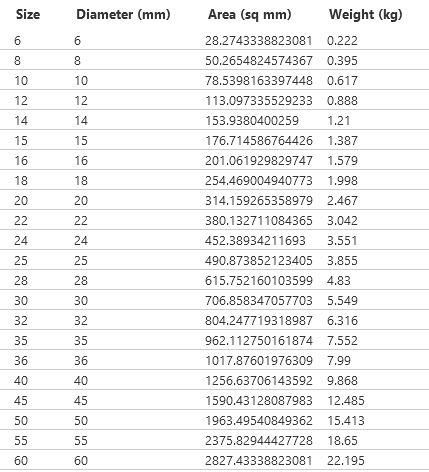
The default English and SI Rebar Tables are shown below.
SI Rebar Table:
English Rebar Table: